
The best Claude connectors for freelancers are the ones that reach the three places your business lives: your inbox, your files and your money. Connect those and Claude stops being a chat window you paste things into. It reads the client thread, finds the contract and tells you which invoice is late. Here is which ones to turn on, in what order, and where each one fails.
- Start with three connectors, not twelve: Gmail, Google Calendar and Google Drive cover most of a solo business.
- Pick by job. One connector to win work, one to deliver it, one to get paid.
- Gmail can now send, reply and forward, and it asks you first by default. Leave that default on.
- Claude reads attachment names in Gmail, not what is inside them. Put the file in Drive if you want it read.
- Money connectors such as Stripe include write tools. Ask for reports first and treat any action as something you approve line by line.
- Check your client contracts before you connect a folder that holds their confidential files.
What a Claude Connector Really Does for a One-Person Business
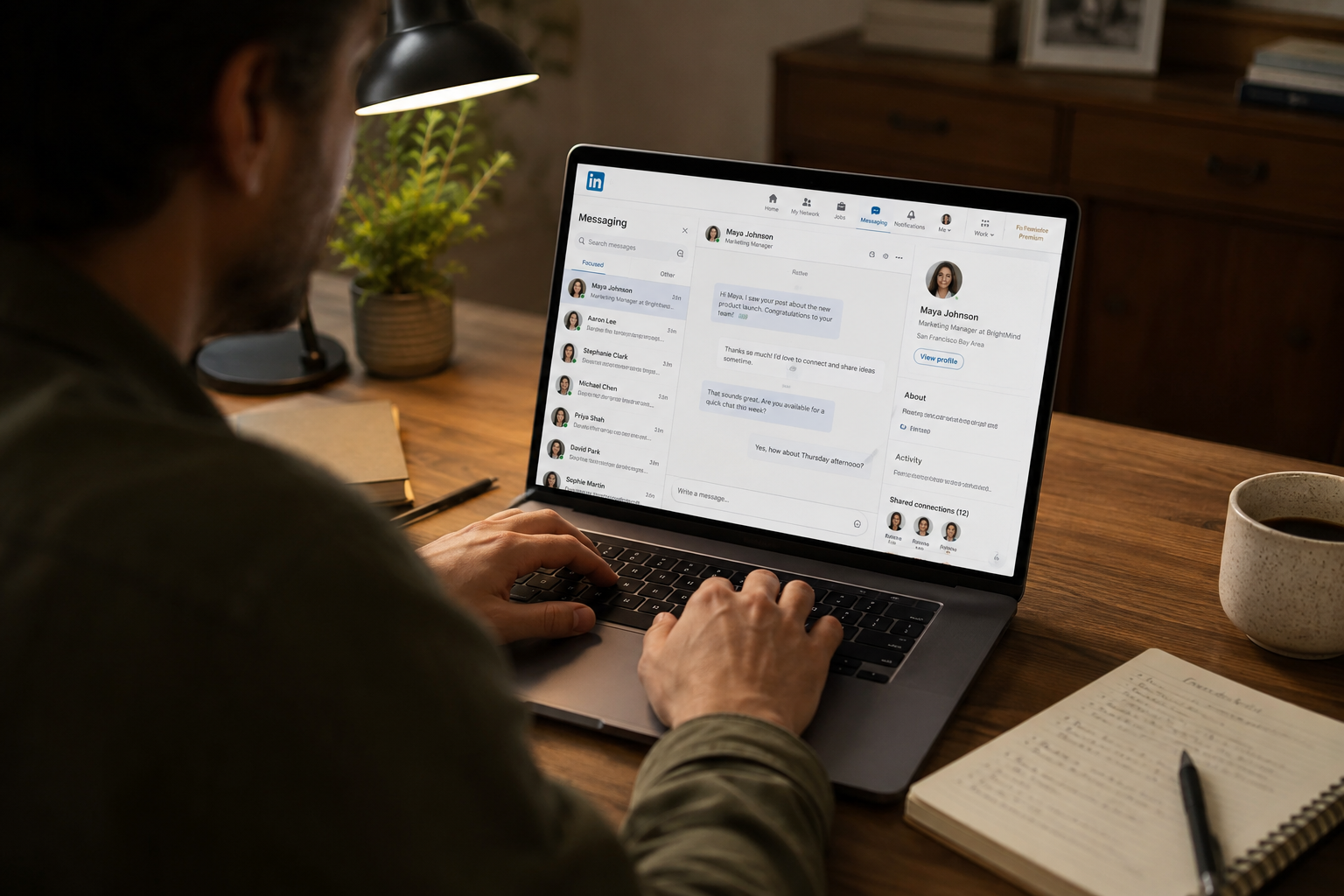
A connector is a signed-in link between Claude and another app. Once it is on, Claude can look things up in that app during a chat and, where the connector allows it, take an action there. You do not copy anything across. You ask a question and Claude goes to the source.
There are two kinds. Directory connectors are the ones listed in Claude’s own catalogue, each with a page that shows what it can read and what it can change. Custom connectors are anything else you add yourself with a web address. For a freelancer, the directory is where you should stay until you have a reason to leave it. Anthropic’s help centre says directory connectors are available to all users on the web, in the desktop app and on mobile, and that the free plan is limited to one custom connector.
That changes the question. It is no longer “can I afford connectors” but “which ones deserve access to my client work”. When we checked Claude’s connectors directory it listed more than a thousand entries. You need about five.

The Best Claude Connectors for Freelancers, Ranked by the Job They Do
Most lists rank connectors by popularity. That is the wrong order for a freelancer, because your week has three jobs and each needs a different tool. This table sorts the connectors we verified in the directory by the job they do for you.
| Connector | Freelancer job | What Claude can do | Watch out for |
|---|---|---|---|
| Gmail | Win work | Search and read mail, draft, send, reply, forward, manage labels | Reads attachment details, not attachment content |
| Google Calendar | Win work | View events, find free time, create, update and delete events | It can delete events, so read the request before you approve |
| Granola | Win work | Answer questions from your meeting notes and transcripts | Only helps if your calls are recorded in Granola |
| Google Drive | Deliver | Search and read Docs, Sheets, Slides and PDFs, upload, create folders, share, move | Text only: images inside a document are not processed |
| Notion | Deliver | Search and update your workspace | Shared client pages come along with your login |
| Asana | Deliver | Work with tasks, projects and goals | Pick this or Notion as your tracker, not both |
| Canva | Deliver | Search, create, autofill and export designs | A first draft, not a finished brand piece |
| Stripe | Get paid | Read and search payment data, summarise your balance; it also has write tools | Write access to money. Reports first |
| Intuit QuickBooks Labs | Get paid | Categorise bank transactions, reconcile accounts, send invoices, run reports | Labelled Beta in the directory |
Read the last column twice. Every connector on this list is useful and every one has a limit that will bite you if you assume it away. The rest of this guide goes through the three jobs in order.
Win the Work: Gmail, Google Calendar and Granola
This section covers the connectors that help you find, answer and book clients. If you only turn on one thing today, make it Gmail, because your pipeline is already sitting in it: the enquiry you forgot, the proposal nobody answered, the client who went quiet after the second draft.
According to Anthropic’s Google Workspace connectors guide, Claude can search and read your mail, write drafts, and send, reply to and forward messages, with your approval required by default. It can also manage labels. What it cannot do is open an attachment. It sees that a PDF exists and what it is called, and nothing more.
For each one give me: who it is, what they asked in one line, how many days it has waited, and a suggested next step.
Sort by how likely it is to become paid work. Do not draft or send anything yet.
If the answer is weak: Narrow the window to 14 days, or name the labels and senders to ignore (newsletters, receipts, platform notifications).
Now the calendar. The same guide says Claude can view your events, find time that works for several people, and create, update and delete events. For a freelancer the useful part is the first two. Ask it where your week really went before you quote your next deadline.
Show me the blocks of 2 hours or more that are free on weekdays between 9:00 and 17:00, total them per week, and tell me the earliest realistic delivery date if I keep Fridays free.
Do not create any events. Just show me the plan.
If the answer is weak: Give it your real working hours and the meetings that are flexible, then ask again.
Granola earns its place if you take discovery calls. Its directory listing describes it as a meeting notepad that lets you ask about your notes, transcripts and meeting context. That means the proposal can be written from what the client said on the call, in their words, instead of from memory. If your calls are not recorded there, skip it. The same logic applies to any note-taker: the connector is only as good as the notes behind it.
Once the lead answers, you still have to write the pitch. Our guide to cold email prompts that get replies covers the wording, and it works the same way in Claude.
Do the Work: Google Drive, Notion, Asana and Canva
This section covers delivery: the files, the task list and the visuals. Google Drive is the one almost everybody needs, because contracts, briefs and drafts end up there whether you planned it or not.
With the Drive connector Claude can search your files and read Docs, Sheets, Slides and PDFs. It can also upload files, create folders, and share, move or trash files, and those last actions need your approval by default. The limit that matters: it extracts text only. A brief that is mostly screenshots, a scanned contract or a brand guide made of images will come back half empty, and Claude will not always tell you why.
Compare them. List: (1) every deliverable in the brief that is not in the agreement, (2) the number of revision rounds the agreement allows, (3) the payment terms and due dates, (4) anything in the brief that is unclear enough to cause a dispute later.
Quote the exact sentence from each document for every point. If you cannot find a document, say so instead of guessing.
If the answer is weak: Give it the exact file names. If the contract is a scan, export it as a text PDF or a Google Doc first.

For the tracker, choose one. Notion’s listing says the connector can search and update your workspace; Asana’s covers tasks, projects and goals. Both are good. Running both means Claude has two versions of the truth and so do you. If your clients already live in one of them, that decides it.
Canva is the surprise on this list. The connector can search your designs and create, autofill and export new ones. For a writer or consultant that means a decent one-page proposal cover, a simple social graphic or a client report template without opening the editor. For a designer it is a way to rough out options. In both cases it is a first draft. Check fonts, spacing and brand colours yourself before anything goes to a client.
Get Paid: Stripe and Intuit QuickBooks Labs
This section covers the connectors that touch money, which is also where you should be most careful. Late invoices are the quiet leak in most freelance businesses, and they are easy to miss because checking them is boring.
Stripe’s page in the directory shows a connector made by Stripe itself. Its tools let Claude read and search your payment data and summarise your balance. The same page lists write tools too. That is the detail most roundups skip: this connector is able to change things in your Stripe account, not only look at them.
Intuit QuickBooks Labs is listed with a Beta label. Its description says it can categorise bank transactions, reconcile accounts, send invoices and run reports. Beta means what it says. Use it for reports and questions first, and keep doing your month-end checks by hand until you trust it.
For each one show: customer, amount, due date, days overdue and the last event.
Then give me the total outstanding and the three I should chase first, with one sentence on why. Read only. Do not create, change or send anything.
If the answer is weak: Ask for one customer at a time, or a shorter period. Then compare two lines against your Stripe dashboard yourself.
If your payment or accounting tool is not in the directory, do not force it with a workaround on day one. Export a monthly report to Google Drive and let Claude read it there. It is less clever and it works.
Set Up the Best Claude Connectors for Freelancers in 20 Minutes
This section is the setup, in the order that causes the fewest problems. The menu names below come from Anthropic’s help centre on the day we checked; if a label has moved, look for Connectors under Customize.
Go to Customize, then Connectors, and select the plus sign next to Connectors. From a chat you can also select the plus sign in the lower left, hover over Connectors and choose Manage connectors.
Select each one, read what it can access, select Connect and sign in with the Google account you use for work, not your personal one.
Notion or Asana. Stripe or Intuit QuickBooks Labs. Stop there for the first week.
By default Claude asks before each send, reply, forward, share, move or trash action. Keep it that way.
In a conversation, select the plus sign, hover over Connectors and switch on only the ones that task needs.
Ask a question you already know the answer to. If Claude gets it wrong, you have learned the limit cheaply.
If you work inside a client’s Team or Enterprise workspace, the rules are different. An owner has to enable each connector for the organisation first, and owners can set tools to always allow, needs approval or blocked. If something you expect is missing there, that is a setting, not a bug.

10 ebooks and planners with a Start Here roadmap
$4710 ebooks · $90 one by oneSee inside →Buy once, get every updateA Monday Morning With Three Connectors: One Worked Example
This section shows the three jobs joined up. The example is illustrative: a copywriter with four clients, Gmail, Calendar and Drive connected, and twenty minutes before the first call.
1. From Gmail: which client emails from the last 5 days still need an answer from me? One line each.
2. From Calendar: what client meetings do I have this week, and for each one, what did we last agree by email?
3. From Drive: for the meeting with [client name], find the latest draft and list the open comments or questions in it.
Finish with a list of the 5 things I should do today, in order, with a time estimate for each. Do not send, schedule or change anything.
If the answer is weak: Run the three parts as separate messages. Long combined requests are where connectors drop details.
This week: Tuesday 10:00, Northside Dental. Last agreed by email: two revision rounds, second round due Wednesday.
Draft: “Landing page v2” has 4 open comments, 2 about pricing wording.
Today, in order: 1) Answer Northside about the 20th (5 min). 2) Fix the two pricing comments (30 min). 3) Send revised draft before the call (10 min).
What you check before you act on it: open the Thursday email and confirm the date, and open the draft to confirm the comment count. Claude summarises well and miscounts sometimes. Our guide on how to fact-check AI answers gives you a two-minute routine for exactly this.
Four Connectors You Can Skip for Now
This section is the list most roundups will not give you, because they are written by companies that sell a connector. You can add any of these later. You do not need them to start.
- Slack. The connector can send messages, create canvases and fetch Slack data. If you are a guest in five client workspaces, connecting them mixes five clients’ conversations into one assistant. Connect it only for a workspace you own.
- HubSpot. It brings CRM context into Claude. If you have fewer than thirty active leads, your inbox is your CRM and Gmail already covers it.
- Microsoft 365. It reaches SharePoint, OneDrive, Outlook and Teams. Use it instead of the Google trio if your work account is Microsoft. Do not run both suites unless you really live in both.
- Fiverr. Listed as a way to find and hire freelancers. Useful the day you subcontract, not before.
If you are still deciding where AI fits in your business at all, start with how AI is changing freelance work and, for the wider automation picture, our AI business automation guide.
Free tool · no sign-upHow good are your prompts?Your level and three fixes you can use today.Try it →5 Mistakes Freelancers Make With Claude Connectors
This section covers the errors people make after the setup works, which is when they stop paying attention.
1. Connecting your personal Google account
2. Turning off approvals to save clicks
3. Asking Claude to read an attachment in Gmail
4. Running every connector in every chat
5. Letting the connector replace the record
Best Claude Connectors for Freelancers: 6 Questions People Ask
Are Claude connectors free?
Anthropic’s help centre says directory connectors are available to all users on the web, desktop and mobile apps, so you do not need a paid plan to add one. Custom connectors are available on every plan too, with the free plan limited to one. You still need an account, and any paid tier, in the app you connect. Usage limits on your Claude plan still apply.
Which Claude connector should a freelancer set up first?
Gmail. Your leads, client questions and unpaid follow-ups are already there, so it pays back on the first day. Add Google Calendar and Google Drive straight after, because most useful requests need two of the three: a meeting plus the email behind it, or an email plus the file it mentions. Add a money connector once those feel routine.
Can Claude send emails on my behalf?
Yes, through the Gmail connector. Anthropic’s documentation says Claude can draft, send, reply to and forward emails, and that by default it asks for your explicit approval before each of those actions. Keep that default. Read the recipient, the subject and the full text before you approve, the same way you would check a message an assistant wrote for you.
Is it safe to connect client files to Claude?
It depends on your contract, not only on the tool. A connector gives Claude the access your own login has, and connected services handle data under their own terms. Check each client’s confidentiality clause first. When in doubt, keep that client’s folder in a separate account or share only the specific documents a task needs by uploading them.
What can’t Claude connectors do?
They cannot reach beyond your own permissions in an app. In Gmail, Claude sees attachment details but not the content. In Drive, it reads text and skips images inside documents. Beta connectors, such as Intuit QuickBooks Labs, can change without notice. And no connector checks its own answers, so verify figures and dates at the source.
Do Claude connectors work on the phone?
Yes. Anthropic lists directory connectors as available in the Claude mobile apps on iOS and Android, and notes that installing a connector from mobile is in beta. The simplest route is to add and sign in to each connector on a computer once. After that you can switch them on inside a chat on your phone.
The Bottom Line: Three Jobs, Five Connectors
The best Claude connectors for freelancers are the few that match how you earn: Gmail, Google Calendar and Google Drive to win and deliver the work, one tracker, and one money tool you use in read-only mode first. Set them up this week, keep approvals on, and check anything with a number in it at the source. Next step: pick the one admin task you avoid most and run it through a connector on Monday.
For the wider picture, read our guide to automating a small business with AI, see what AI agents can do for a small business, or browse everything in AI for Work. Not sure what to hand over first? The free What to Automate First check takes two minutes.
Sources: Anthropic Help Center, “Use connectors to extend Claude’s capabilities” · Anthropic Help Center, “Use Google Workspace connectors” · Claude connectors directory (claude.com/connectors), including the Stripe listing.
Enjoyed this? Steal the 10 prompts I actually use.
The No-Hype AI Starter Kit — copy-paste prompts, a model cheat-sheet, and a 7-day plan. Drop your email and it's yours instantly.
No spam. Unsubscribe anytime.